> For the complete documentation index, see [llms.txt](https://help.clientlander.com/llms.txt). Markdown versions of documentation pages are available by appending `.md` to page URLs; this page is available as [Markdown](https://help.clientlander.com/how-to-use-conversation-ai-in-the-mobile-app.md).
# How to Use Conversation AI in the Mobile App
## **What is Using Conversation AI on Mobile App?**
Conversation AI on mobile brings your configured Conversation AI assistant into the mobile apps. This allows users to manage customer conversations from their phone while keeping the same AI behavior configured on desktop app. Mobile users can view AI replies, use suggested responses, and manage bot activity for individual conversations without needing to return to desktop for basic control.
Conversation AI on mobile works inside supported conversation channels, including WhatsApp, Facebook, Instagram, and other connected messaging channels available in the Conversations area.
***
### **Key Benefits of Conversation AI on Mobile App**
* **Faster replies:** Respond to customers from the mobile app using automatic AI replies or AI-generated suggestions.
* **More control:** Pause, activate, or schedule bot reactivation from an individual conversation.
* **Consistent communication:** Use the same trained AI behavior configured on desktop while messaging from mobile.
* **Flexible response handling:** Use Autopilot Mode for automatic replies or Suggestive Mode when a team member should review replies before sending.
* **Usage management:** Pause or reactivate the bot from mobile when you need to control AI activity for a conversation.
***
### **Prerequisites for Using Conversation AI on Mobile App**
Conversation AI must be configured on desktop before it can be used from the mobile app. Desktop setup controls the bot’s core behavior, including mode selection, training, subscription, and advanced settings. The mobile app is used to interact with the bot during conversations and manage bot activity for a specific conversation.
Before using Conversation AI on mobile, confirm that:
* Conversation AI is enabled for the location.
* The bot has been configured on desktop
* The correct mode has been selected on desktop: Autopilot Mode or Suggestive Mode.
* The relevant messaging channels are connected.
* The mobile app is updated to a supported version.
***
### **How To Use Conversation AI on Mobile App**
Proper setup ensures the mobile app uses the correct Conversation AI behavior during customer conversations. Core bot setup is completed on desktop first, then mobile users can open conversations, use AI replies, and manage bot activity from the conversation screen.
**Step 1: Configure Conversation AI on desktop**
1. Open your account on desktop.
2. Go to **AI Agents** > **Conversation AI.**\
[](https://jumpshare.com/share/KksqnmTytwUb7lrs5zPr+/Screen+Shot+2026-05-28+at+20.24.20.png)
3. **Create** a New **Bot** or **use** an **existing** one.\
[](https://jumpshare.com/share/3Dyx0q5hbJE2hqb2GQvz+/Screen+Shot+2026-05-28+at+20.25.43.png)
4. [Set up the Conversation AI bot](https://help.gohighlevel.com/en/support/solutions/articles/155000004401).
5. Choose either **Autopilot Mode** or **Suggestive Mode**.\
[](https://jumpshare.com/share/ac9jhodTDj5gTHeu3MDn+/Screen+Shot+2026-05-28+at+20.23.02.png)
**Step 2: Open a conversation on Mobile App**
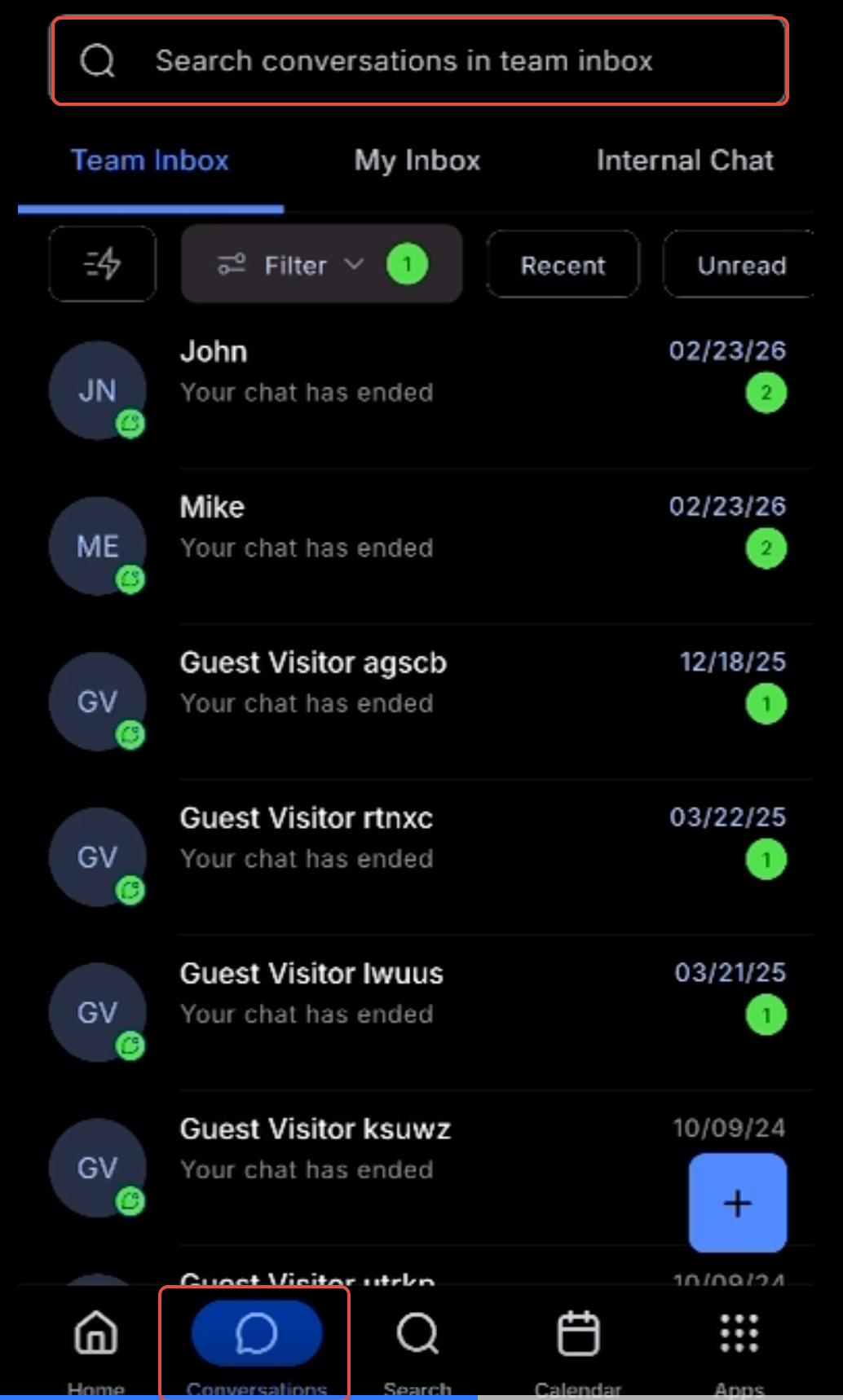
1. Open the mobile app.
2. Go to **Conversations**.
3. **Select** a **conversation** from a supported messaging channel.
[](https://s3.amazonaws.com/cdn.freshdesk.com/data/helpdesk/attachments/production/155073912594/original/z64MNkqpnjHYDCY4Qf9QTQgnhO4X2TpWpQ.png?1781715670)
**Step 3: Use Conversation AI in the conversation**
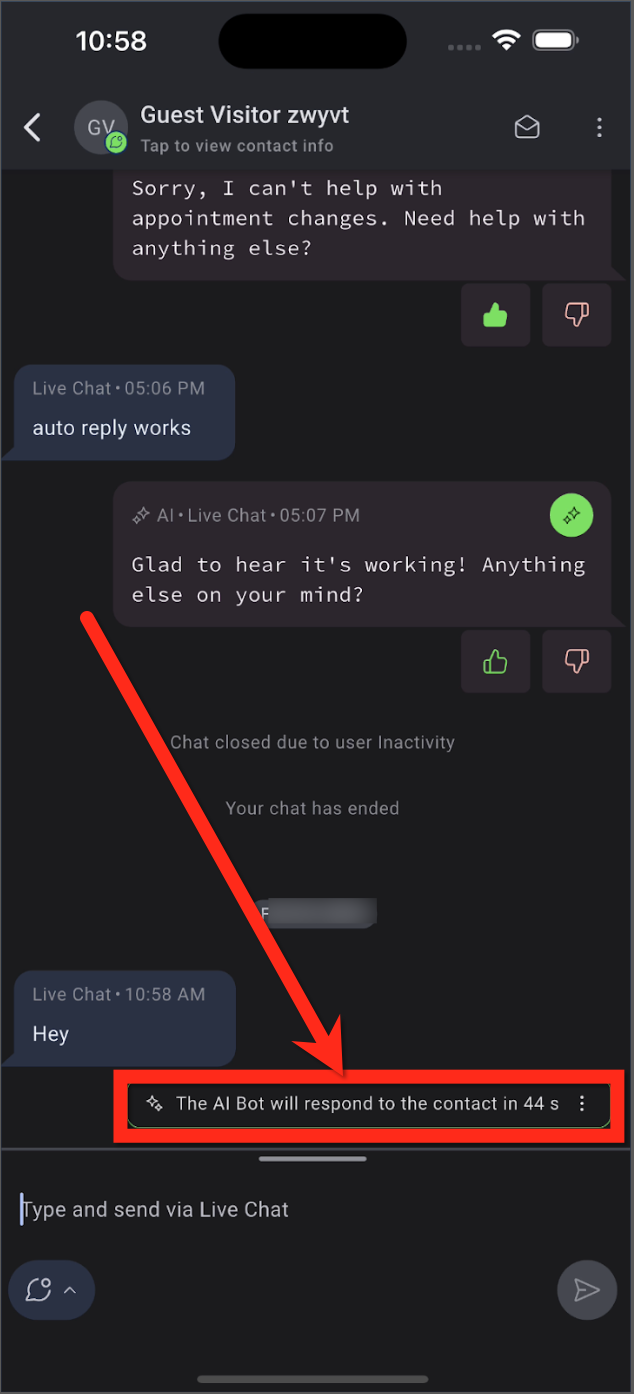
* In **Autopilot** **Mode**, the **AI replies automatically after the configured delay**.
| [](https://s3.amazonaws.com/cdn.freshdesk.com/data/helpdesk/attachments/production/155072646765/original/zI-gPT2wh5MhrJlsO7QfiMY0K66WJeYHtg.png?1780343778) |
|
| ----------------------------------------------------------------------------------------------------------------------------------------------------------------------------------------------------------------------------------------------------------------------------------------------------------------------- | ----------- |
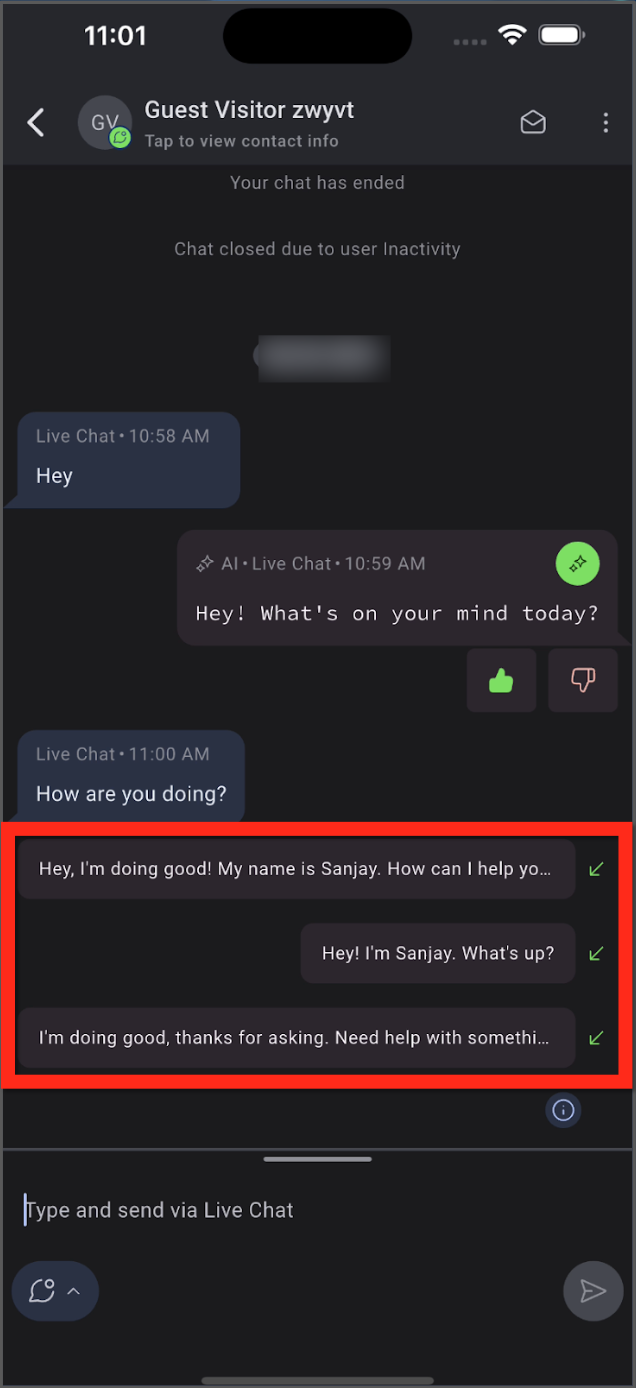
* In **Suggestive** **Mode**, tap into the message field **to view suggested replies, then choose, edit, and send the response manually.**
| [](https://s3.amazonaws.com/cdn.freshdesk.com/data/helpdesk/attachments/production/155072646802/original/ByDOd983Pe8UQ7B4iF88Vwth31UGqQ169w.png?1780343881) |
|
| ----------------------------------------------------------------------------------------------------------------------------------------------------------------------------------------------------------------------------------------------------------------------------------------------------------------------- | --------------- |
**Step 4: Manage the bot from mobile when needed**
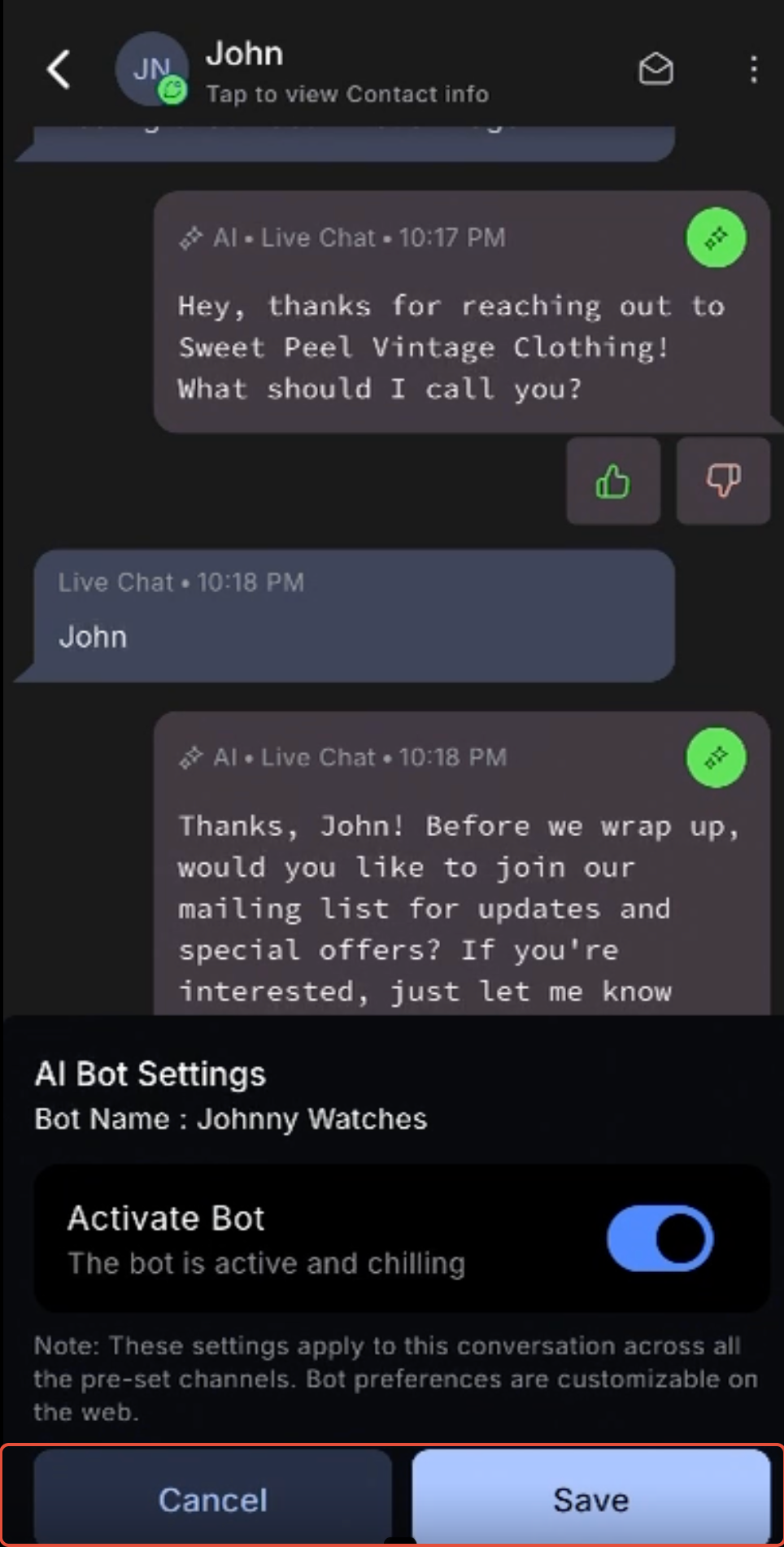
1. Tap the top-right ellipsis menu.
2. Select **Edit AI Settings**.
3. **Activate**, **pause**, or **schedule** **reactivation** for the bot.
4. Tap **Save**.
[](https://s3.amazonaws.com/cdn.freshdesk.com/data/helpdesk/attachments/production/155073912213/original/hTf9iQzdfRiP7Ofahyp6x-dkdKtZwO7ohg.png?1781715282)
***
### **Frequently Asked Questions**
**Q: Can I fully configure Conversation AI from the mobile app?**
No. Core setup, bot training, mode selection, subscriptions, and advanced configuration are managed from desktop. The mobile app lets users interact with Conversation AI in conversations and manage bot activity for individual conversations.
**Q: What is the difference between Autopilot Mode and Suggestive Mode on mobile?**
Autopilot Mode sends AI replies automatically after the configured delay. Suggestive Mode creates AI-generated reply options that a user can review, edit, and send manually.
**Q: Can I pause the bot for only one conversation?**
Yes. Open the conversation, tap the top-right ellipsis menu, select Edit AI Settings, and turn off Activate Bot. This manages bot activity for that conversation.
**Q: Can the bot turn back on automatically after being paused?**
Yes. When pausing the bot, enable Reactivate After, enter the timeframe, and tap Save. The bot will reactivate after the selected time.
**Q: Will mobile Conversation AI work for WhatsApp, Facebook, and Instagram messages?**
Yes, Conversation AI can be used in supported connected messaging channels available in the mobile Conversations area, including WhatsApp, Facebook, and Instagram.
**Q: Does pausing the bot from mobile affect AI usage?**
Pausing the bot stops it from responding in that conversation while paused. This can help manage AI activity and usage for conversations where automated replies are not needed.
**Q: Why do I not see AI suggestions in the mobile conversation?**
Confirm that Conversation AI is configured on desktop, Suggestive Mode is selected, the conversation is on a supported channel, and the mobile app is updated.
**Q: Why is the AI bot not responding automatically?**
Confirm that Conversation AI is active, Autopilot Mode is selected, the bot is not paused for the conversation, and the configured response delay has passed.
***
### **Need Help?**
If Conversation AI is not responding as expected on mobile, first confirm that the bot has been properly configured on desktop and that the correct mode (Autopilot Mode or Suggestive Mode) is enabled. Also verify that the conversation is taking place through a supported messaging channel and that the mobile app is updated to the latest version.
If AI suggestions are not appearing, responses are not being sent automatically, or bot activation settings are not behaving as expected, review the conversation’s AI settings and confirm the bot is active for that contact. If the issue persists after verifying your setup, contact your account administrator or support team for additional assistance.
---
# Agent Instructions
This documentation is published with GitBook. GitBook is the documentation platform designed so that both humans and AI agents can read, navigate, and reason over technical content effectively. Learn more at gitbook.com.
## Querying This Documentation
If you need additional information that is not directly available in this page, you can query the documentation dynamically by asking a question.
Perform an HTTP GET request on the current page URL with the `ask` query parameter, and the optional `goal` query parameter:
```
GET https://help.clientlander.com/how-to-use-conversation-ai-in-the-mobile-app.md?ask=&goal=
```
`ask` is the immediate question: it should be specific, self-contained, and written in natural language.
`goal` is optional and describes the broader end goal you are ultimately trying to accomplish on behalf of the user. GitBook uses it to tailor the answer towards what is most useful for that goal.
The response will contain a direct answer to the question and relevant excerpts and sources from the documentation.
Use this mechanism when the answer is not explicitly present in the current page, you need clarification or additional context, or you want to retrieve related documentation sections.